Link Mobile SDK iOS
This page is the integration guide for embedding the Link Mobile iOS SDK into an iOS app. This guide covers configuring the SDK, discovering devices, issuing BLE credentials, and preforming BLE credential exchange operations.
Note: Types, protocols, and methods are covered in the hosted API reference below.
Overview
The Link Mobile iOS SDK lets your app integrate with Last Lock’s frameworks so you can discover and communicate with locks over Bluetooth Low Energy (BLE) and run Proxy, which carries encrypted traffic between locks and Link.
Example integration apps: source code on GitHub.
Prerequisites
- Read access to the Link Mobile SDK private GitHub repository
- A Personal Access Token (PAT) with
repoandread:packagespermissions - Xcode 15+, Swift 5.9+, and iOS 16.0+
- A valid Apple Developer Team ID and app bundle ID
- A physical iOS device (for BLE and for App Attest — use real hardware, not only Simulator)
Link allowlisting
For each distinct app identity that will talk to Link (each App Store / TestFlight / enterprise build identity you ship), send Last Lock this information so operators can add it to Link's attestation allowlist:
| Item | Detail |
|---|---|
| Allowlist string | {TEAM_ID}.{BUNDLE_ID} — 10-character Apple Developer Team ID + . + the target’s Bundle Identifier (CFBundleIdentifier, same as Xcode Signing & Capabilities). Example shape: ABCDE12345.com.example.app. |
| No substitution | The string must match the app you sign (case-sensitive for the bundle ID segment). Link hashes this exact string and compares it to the RP ID in the App Attest authenticator data. |
| App Attest capability | Enable App Attest on the app target in Xcode (associated DeviceCheck entitlement). Without it, attestation cannot succeed. |
It is crucial that the exact value is shared to allow the app to connect and communicate with Link, without this, attestation will fail and
the SDK will not be able to set up the connectivity mechanism. Allowlist updates are applied on the Link side by Last Lock operators. Until your {TEAM_ID}.{BUNDLE_ID} entries are saved, attestation will fail and Link connectivity with the SDK (Proxy, streams) will not come up. Coordinate timing with your Last Lock contact.
Runtime requirements
- Internet is required when the SDK establishes the attested Link channel (nonce and certificate validation go to Link).
- Physical device recommended for end-to-end validation; App Attest behavior on Simulator is limited.
Setup
Private GitHub access
Configure a PAT in ~/.netrc so Xcode can resolve the private Swift package and any GitHub-hosted assets:
# ~/.netrc
machine github.com
    login USERNAME
    password ACCESS_TOKEN

machine api.github.com
    login USERNAME
    password ACCESS_TOKEN
chmod 600 ~/.netrc
Importing the SDK
Option A — Xcode (Swift Package)
- File → Add Package Dependencies
- Repository URL (production Swift package):
https://github.com/last-lock/link-mobile-sdk-prod - Select products
LinkMobileandLinkMobileTypesfor your app target - Confirm the resolved version matches the API docs version you opened on GitHub Pages
Option B — XcodeGen
packages:
    LinkMobileSDK:
        url: https://github.com/last-lock/link-mobile-sdk-prod
        exactVersion: "2.4.0"

targets:
    IntegratorApp:
        dependencies:
          - package: LinkMobileSDK
            product: LinkMobile
          - package: LinkMobileSDK
            product: LinkMobileTypes
Regenerate the Xcode project after editing project.yml.
Package coordinates and registry URLs can change between dev and prod artifacts; this guide uses link-mobile-sdk-prod. Align version, package URL, and hosted API docs with your integration agreement.
Proxy setup and device discovery
Bridge() defaults to the production hostname plane.lastlock.com, BLE service UUID FC5A, and TLS port 443. bridge.start() also defaults to FC5A. Override these settings only when instructed by Last Lock.
Use a small controller type to own SDK lifetime and BLE callbacks: create a Bridge (Link / Proxy), get BlueLink from it, and conform to BlueLinkEventListener and CredentialExchangeDelegate. Register at least one BlueLink listener; BlueLink does not emit discovery callbacks until a listener is added. Register the CredLink delegate to receive the final result of each credential exchange.
import LinkMobile
import CoreBluetooth
import Combine
import Foundation

final class ApplicationController: BlueLinkEventListener, CredentialExchangeDelegate, ObservableObject {
    var bridge: Bridge
    var blueLink: BlueLink
    var credLinkManager: CredLinkManager

    // Configs
    let businessServerUrl = ""

    @Published var isBleConnected: CBManagerState? {
        didSet {
            if isBleConnected == .poweredOn {
                print("starting scanning for devices")
                self.bridge.start()
            } else {
                self.bridge.getBlueLink().stopBLEScan()
            }
        }
    }

    @Published var allDevices: [BluetoothDevice] = []
    @Published private(set) var isBusy = false
    @Published private(set) var isIssuingPass = false
    @Published private(set) var temporaryCredentialReady =
        TemporaryUnlockCredentialStore.hasStoredPass
    @Published private(set) var unlockingDeviceID: String?
    @Published private(set) var status: String?

    override init() {
        self.bridge = Bridge()
        self.blueLink = bridge.getBlueLink()
        self.credLinkManager = bridge.getCredLink()
        super.init()

        // Registering ApplicationController to receive BlueLinkEventListener events
        self.blueLink.addListener(listener: self, prependListener: false)
        self.credLinkManager.credentialExchangeDelegate = self
    }


    override func onBLEStateChanged(newState: Bool) {
        print("BLE state changed to \(newState)")
        DispatchQueue.main.async {
            self.isBleConnected = newState ? .poweredOn : .poweredOff
        }
    }


    override func onDeviceDiscovered(
        device: BluetoothDevice,
        advertisementData: BluetoothAdvertisement,
        rssi: Int32,
        signalStrength: SignalStrength?,
        connectionStatus: BlueLinkDeviceConnectionStatus
    ) {
        DispatchQueue.main.async {
            print("Discovered device: \(device.deviceId)")
            if self.allDevices.contains(where: {
                $0.deviceId == device.deviceId
            }) {
                // Device already tracked in allDevices
                return
            } else {
                // Fresh Device discovered, tracking in allDevices
                self.allDevices.append(device)
            }
        }
    }

}
Bluetooth permission
If you see API MISUSE, ensure Info.plist includes:
Privacy - Bluetooth Always Usage Description — e.g. “To discover nearby Last Lock devices.”
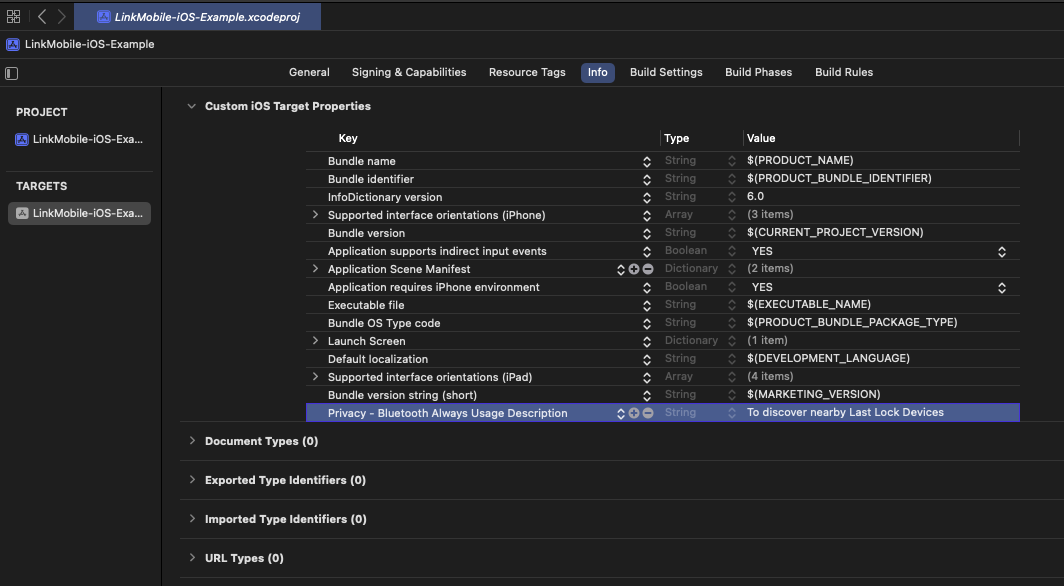
Start scanning only after BLE is ready (onBLEStateChanged / powered on), as in the hosted API docs and examples.
Rendering discovered devices
The ApplicationController example above adds discovered BluetoothDevice
values to allDevices. In ContentView.swift, render one DeviceTile per
lock. The tile's BLE Unlock button uses the persisted temporary credential
described below; it is disabled until a pass is ready and while another
operation is in progress. The progress indicator remains visible until
CredLink reports the unlock result.
import LinkMobile
import SwiftUI

struct DeviceTile: View {
    let device: BluetoothDevice
    let isEnabled: Bool
    let isUnlocking: Bool
    let onUnlock: () async -> Void

    var body: some View {
        HStack(spacing: 12) {
            Text("Device: \(device.deviceId)")
                .font(.headline)
                .frame(maxWidth: .infinity, alignment: .leading)

            Button {
                Task { await onUnlock() }
            } label: {
                HStack(spacing: 8) {
                    if isUnlocking {
                        ProgressView()
                            .tint(.black)
                    }
                    Text("BLE Unlock")
                }
                .font(.subheadline.weight(.semibold))
                .padding(.horizontal, 18)
                .frame(minHeight: 44)
            }
            .buttonStyle(.plain)
            .foregroundStyle(.black)
            .background(Color(red: 0.68, green: 0.82, blue: 0.69), in: Capsule())
            .disabled(!isEnabled)
            .opacity(isEnabled ? 1 : 0.5)
        }
        .padding(16)
        .background(Color(uiColor: .secondarySystemBackground), in: RoundedRectangle(cornerRadius: 20))
    }
}
Keep pass issuance and the latest status at the bottom of the screen. The
issuer button shows its own progress indicator and, like the lock buttons,
is disabled while an operation is in progress. Add this ContentView in
ContentView.swift after DeviceTile:
struct ContentView: View {
    @StateObject private var applicationController = ApplicationController()

    var body: some View {
        VStack(alignment: .leading, spacing: 0) {
            Text("Discovered Locks")
                .font(.title2)
                .padding(.horizontal, 20)
                .padding(.top, 20)
                .padding(.bottom, 24)

            if applicationController.allDevices.isEmpty {
                Spacer()
                Text("No locks discovered yet…")
                    .foregroundStyle(.secondary)
                    .frame(maxWidth: .infinity)
                Spacer()
            } else {
                ScrollView {
                    LazyVStack(spacing: 10) {
                        ForEach(applicationController.allDevices, id: \.deviceId) { device in
                            DeviceTile(
                                device: device,
                                isEnabled: applicationController.temporaryCredentialReady
                                    && !applicationController.isBusy,
                                isUnlocking: applicationController.unlockingDeviceID
                                    == String(describing: device.deviceId),
                                onUnlock: {
                                    await applicationController.performTemporaryCredentialUnlock(device: device)
                                }
                            )
                        }
                    }
                    .padding(.horizontal, 12)
                    .padding(.bottom, 12)
                }
            }
        }
        .frame(maxWidth: .infinity, maxHeight: .infinity)
        .background(Color(uiColor: .systemBackground))
        .safeAreaInset(edge: .bottom, spacing: 0) {
            VStack(alignment: .leading, spacing: 10) {
                if let status = applicationController.status {
                    Text(status)
                        .font(.footnote)
                        .frame(maxWidth: .infinity, alignment: .leading)
                }

                Button {
                    Task { await applicationController.createTemporaryUnlockCredential() }
                } label: {
                    HStack(spacing: 8) {
                        if applicationController.isIssuingPass {
                            ProgressView()
                                .tint(.black)
                        }
                        Text("Issue a 7 day unlock pass")
                    }
                    .font(.subheadline.weight(.semibold))
                    .frame(maxWidth: .infinity, minHeight: 48)
                }
                .buttonStyle(.plain)
                .foregroundStyle(.black)
                .background(Color(red: 0.68, green: 0.82, blue: 0.69), in: Capsule())
                .disabled(applicationController.isBusy)
                .opacity(applicationController.isBusy ? 0.5 : 1)
            }
            .padding(12)
            .background(Color(uiColor: .systemBackground))
        }
    }
}
Example Server for Aliro Unlock
A reference Python server is available to issue Aliro BLE token-unlock passes and to
configure the trust material required by a lock. The implementation of the server
is present in the /examples directory of the SDK repo.
The server exposes the following endpoints:
| Endpoint | Purpose |
|---|---|
GET /healthz | Liveness check; no authentication required. |
POST /v1/configure | Fetches a lock's reported reader public key from Link, issues a reader certificate, and queues its Aliro configuration in Link. |
POST /v1/issue-unlock-pass | Issues an unlock pass for the provided BLE credential's public key and requested duration in seconds. |
When the SDK creates a BLE credential, the SDK only returns the credential's public key which the example app shares with the example server. The example server issues passes for locks configured with its trust material, creates a signed Aliro access document, and returns the unlock pass plus reader trust material for the SDK to use during the BLE unlock. The credential private key remains on the phone and is never shared. This guide requests a seven-day pass. The example server does not authenticate HTTP requests; a production backend must authenticate callers and authorize access to each lock. In the current example, the server's private signing keys are stored locally, but in a production environment, the signing keys must be securely persisted.
Issuing and using a temporary Aliro BLE credential
Use a temporary Aliro BLE credential when access must remain available across app launches for a bounded period. For example, a resident may need access for the week after move-in, an installer may return to complete work over several days, or a contractor may need access during a scheduled maintenance window.
The SDK stores the temporary credential in secure storage. The app keeps a
stable namespace that identifies the credential; after an app restart, use
that namespace to access the same private key and pass. The private key never
leaves the device. The integrating server receives only the public key and
returns a signed Aliro access document and reader trust material. A production
server must authorize the request before issuing the pass. The reference server's
/v1/issue-unlock-pass endpoint issues a pass valid for seven days when
duration is 604800 seconds.
Configure target locks
Configure each target lock through the example server's /v1/configure
endpoint. The lock must receive the queued Aliro trust configuration through
Link while connected to the SDK before it can validate a presented pass. If
the endpoint reports that the lock has not yet reported an Aliro reader public
key, wait for provisioning to complete and try again. A 202 Accepted
response means the configuration was queued, not that the lock has received it.
curl -i -X POST http://localhost:3006/v1/configure \
  -H 'Content-Type: application/json' \
  -d '{"device_id":442}'
The pass request contains the phone credential's public key and duration; the reference server issues passes for locks configured with its trust material.
Persist the credential namespace
Persist one namespace for each temporary credential. The namespace is not a secret; it identifies the SDK-managed key pair and stored pass. In production, associate it with the authenticated user and the access grant, and remove it when access is revoked or the user signs out.
private enum TemporaryUnlockCredentialStore {
    private static let namespaceKey = "com.example.linkmobile.temporary-unlock.namespace"
    private static let hasPassKey = "com.example.linkmobile.temporary-unlock.has-pass"

    static func namespace() -> String {
        if let namespace = UserDefaults.standard.string(forKey: namespaceKey) {
            return namespace
        }

        let namespace = UUID().uuidString.lowercased()
        UserDefaults.standard.set(namespace, forKey: namespaceKey)
        return namespace
    }

    static var hasStoredPass: Bool {
        UserDefaults.standard.bool(forKey: hasPassKey)
    }

    static func markPassStored() {
        UserDefaults.standard.set(true, forKey: hasPassKey)
    }

    static func remove() {
        UserDefaults.standard.removeObject(forKey: namespaceKey)
        UserDefaults.standard.removeObject(forKey: hasPassKey)
    }
}
Create the temporary credential and request an unlock pass
Call temporaryPassPublicCredential(namespace:) to obtain a public key for the
namespace. The SDK creates and stores a P-256 key pair when that namespace is
first used, and returns the existing public key on subsequent calls. Base64
encode the public key and send it to /v1/issue-unlock-pass with duration
set to 604800 seconds.
The endpoint returns an access document and reader-group trust material.
Decode the response into a TokenUnlockPass and store it with
storeTemporaryPassAccessDocument(namespace:tokenUnlockPass:). The SDK then
persists the pass with the key pair, so both are available after the app is
restarted.
In ApplicationController.swift, define the request and response types used
by /v1/issue-unlock-pass:
private struct IssueTokenUnlockPassRequest: Encodable {
    let credentialPublicKey: String
    let duration: Int

    enum CodingKeys: String, CodingKey {
        case credentialPublicKey = "credential_public_key"
        case duration
    }
}

private struct IssueTokenUnlockPassResponse: Decodable {
    let accessDocument: String
    let readerGroups: [ReaderGroup]

    enum CodingKeys: String, CodingKey {
        case accessDocument = "access_document"
        case readerGroups = "reader_groups"
    }

    struct ReaderGroup: Decodable {
        let readerGroupID: String
        let issuerCAPublicKey: String
        let issuerCACertificateDER: String

        enum CodingKeys: String, CodingKey {
            case readerGroupID = "reader_group_id"
            case issuerCAPublicKey = "issuer_ca_public_key"
            case issuerCACertificateDER = "issuer_ca_certificate_der"
        }
    }
}

private struct UnlockSampleError: LocalizedError {
    let message: String
    var errorDescription: String? { message }
}
Add the following methods inside ApplicationController:
@MainActor
func createTemporaryUnlockCredential() async {
    guard !isBusy else { return }

    isBusy = true
    isIssuingPass = true
    status = "Issuing a 7 day unlock pass…"
    defer {
        isIssuingPass = false
        isBusy = false
    }

    let namespace = TemporaryUnlockCredentialStore.namespace()

    do {
        // The SDK creates or retrieves the persisted key pair. Only this public
        // key is sent to the integrating server.
        let publicKey = try await credLinkManager.temporaryPassPublicCredential(
            namespace: namespace
        )
        let unlockPass = try await issueTemporaryUnlockPass(for: publicKey)

        guard try await credLinkManager.storeTemporaryPassAccessDocument(
            namespace: namespace,
            tokenUnlockPass: unlockPass
        ) else {
            throw UnlockSampleError(message: "Error storing the temporary unlock pass")
        }

        TemporaryUnlockCredentialStore.markPassStored()
        temporaryCredentialReady = true
        status = "Unlock pass is ready for seven days."
        print("Successfully issued temporary unlock pass; tap a discovered lock to unlock")
    } catch {
        status = "Unable to issue unlock pass: \(error.localizedDescription)"
        print("Error creating temporary unlock pass: \(error.localizedDescription)")
    }
}

/// Sends a persisted temporary credential's public key to the integrating
/// server and returns the TokenUnlockPass that the SDK stores for its namespace.
private func issueTemporaryUnlockPass(for publicKey: Data) async throws -> TokenUnlockPass {
    let baseURL = businessServerUrl.hasSuffix("/")
        ? String(businessServerUrl.dropLast())
        : businessServerUrl
    guard let url = URL(string: "\(baseURL)/v1/issue-unlock-pass") else {
        throw UnlockSampleError(message: "Set businessServerUrl to the token-unlock sample backend URL")
    }

    let requestBody = IssueTokenUnlockPassRequest(
        credentialPublicKey: publicKey.base64EncodedString(),
        duration: 604800
    )
    var request = URLRequest(url: url)
    request.httpMethod = "POST"
    request.setValue("application/json", forHTTPHeaderField: "Content-Type")
    request.httpBody = try JSONEncoder().encode(requestBody)

    let (data, response) = try await URLSession.shared.data(for: request)
    guard let httpResponse = response as? HTTPURLResponse else {
        throw UnlockSampleError(message: "Example server returned an invalid response")
    }
    guard (200...299).contains(httpResponse.statusCode) else {
        let message = String(data: data, encoding: .utf8) ?? "No response body"
        throw UnlockSampleError(
            message: "Temporary unlock pass request failed (HTTP \(httpResponse.statusCode)): \(message)"
        )
    }

    let responseBody = try JSONDecoder().decode(IssueTokenUnlockPassResponse.self, from: data)
    guard let accessDocument = Data(base64Encoded: responseBody.accessDocument) else {
        throw UnlockSampleError(message: "The token-unlock backend returned an invalid access document")
    }

    let readerGroups = try responseBody.readerGroups.map { group in
        guard
            let readerGroupID = Data(base64Encoded: group.readerGroupID),
            let issuerCAPublicKey = Data(base64Encoded: group.issuerCAPublicKey),
            let issuerCACertificateDER = Data(base64Encoded: group.issuerCACertificateDER)
        else {
            throw UnlockSampleError(message: "Invalid reader trust material received")
        }
        return ReaderGroupTrust(
            readerGroupIdentifier: readerGroupID.toKotlinByteArray(),
            issuerCAPublicKey: issuerCAPublicKey.toKotlinByteArray(),
            issuerCACertificateDer: issuerCACertificateDER.toKotlinByteArray()
        )
    }

    return TokenUnlockPass(
        accessDocument: accessDocument.toKotlinByteArray(),
        readerGroups: readerGroups
    )
}
Perform a temporary credential unlock
Use the same namespace to perform each unlock. CredLinkOperationTokenUnlock
retrieves the persisted key pair and pass from the SDK, then performs the BLE
credential presentation. The lock verifies the reader trust, access-document
signature, and validity interval before granting access. Set the in-progress
state before queuing the operation. A successful return from
performCredLinkOperation means the operation was queued, not that the lock
opened; leave the loading state active until the CredLink callback arrives.
@MainActor
func performTemporaryCredentialUnlock(device: BluetoothDevice) async {
    guard !isBusy else { return }
    guard TemporaryUnlockCredentialStore.hasStoredPass else {
        temporaryCredentialReady = false
        status = "Issue a 7 day unlock pass before unlocking."
        return
    }

    let deviceID = String(describing: device.deviceId)
    isBusy = true
    unlockingDeviceID = deviceID
    status = "Unlocking \(deviceID)…"

    do {
        try await credLinkManager.performCredLinkOperation(
            peripheral: device,
            operation: CredLinkOperationTokenUnlock(
                namespace: TemporaryUnlockCredentialStore.namespace()
            )
        )
        print("Temporary unlock queued for \(device.deviceId)")
    } catch {
        guard unlockingDeviceID == deviceID else { return }
        unlockingDeviceID = nil
        isBusy = false
        status = "\(deviceID): \(error.localizedDescription)"
        print("Temporary unlock failed with error: \(error.localizedDescription)")
    }
}
Receive CredLink unlock results
In ApplicationController.swift, conform to CredentialExchangeDelegate and
assign the controller to credLinkManager.credentialExchangeDelegate during
initialization, as shown in Proxy setup and device discovery.
CredLink invokes the delegate when the credential exchange finishes. Update
the published UI state on the main queue, and report the result for the lock
whose unlock is pending. A callback may indicate access granted, access
denied, a timeout, or another exchange failure; the SDK's result is the
outcome to display, rather than the earlier queueing response. Add this method
inside ApplicationController:
func credExchangeCallback(
    for peripheral: BluetoothDevice,
    operationResult result: CredentialExchangeResult
) {
    let deviceID = String(describing: peripheral.deviceId)
    DispatchQueue.main.async {
        guard self.unlockingDeviceID == deviceID else { return }
        self.unlockingDeviceID = nil
        self.isBusy = false
        self.status = "\(deviceID): \(result)"
    }
}
The matching device ID prevents an unrelated CredLink operation from
clearing the loading state for the selected lock. The view observes
unlockingDeviceID, isBusy, and status to stop the indicator, re-enable
the buttons, and show the final result.
When the pass expires, repeat createTemporaryUnlockCredential() to request a
new pass for the existing credential namespace. To revoke local access or when
the user signs out, delete the stored pass and key pair before removing the
namespace from app storage.
func removeTemporaryUnlockCredential() async {
    let namespace = TemporaryUnlockCredentialStore.namespace()

    do {
        guard try await credLinkManager.deleteTemporaryUnlockPass(namespace: namespace) else {
            throw UnlockSampleError(message: "Error removing the temporary unlock pass")
        }
        TemporaryUnlockCredentialStore.remove()
    } catch {
        print("Error removing temporary unlock pass: \(error.localizedDescription)")
    }
}
Security considerations
- Do not create or sign passes in the mobile application.
- Keep the Link API key, Credential Issuer private key, and Reader CA private key on your backend.
- Authenticate pass requests and authorize access to the intended locks before issuing a pass.
- Preserve the server's signing keys. Rotating the issuer or Reader CA keys requires affected locks to be configured again.
For additional APIs, see the hosted iOS SDK reference and select the version you ship.
Backend and Link
All Link API keys and privileged operations belong on your backend, not in the app. The mobile SDK focuses on connectivity and the protocols exposed in the API reference; your server integrates with Link for org-specific workflows. See Last Lock’s Link and dashboard documentation for server-side patterns.
Troubleshooting
| Issue | What to check |
|---|---|
API MISUSE | Bluetooth usage string in Info.plist; do not start scan until BLE is ready. |
| Proxy fails or crashes on init | Valid serverAddress for your environment; device online. |
| Proxy never connects; attestation errors in logs | Confirm {TEAM_ID}.{BUNDLE_ID} is allowlisted on Link; App Attest capability enabled; device online; dev vs prod App Attest environment matches what was provided. |
| Package resolution failures | ~/.netrc permissions (chmod 600); PAT scopes repo and read:packages. |
See also
- Link Mobile SDK Android — parallel integration guide